
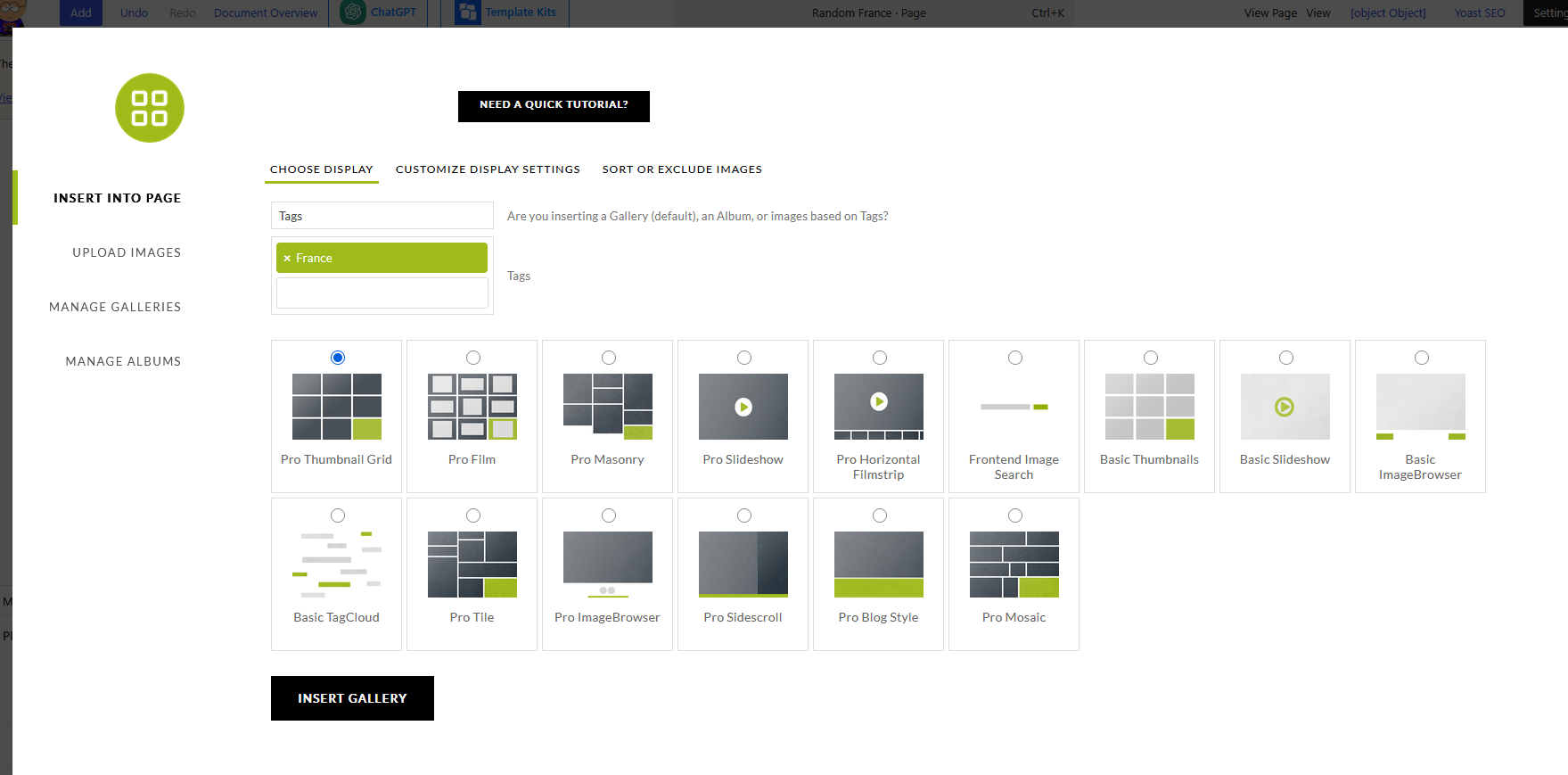
Old style tag based gallery.
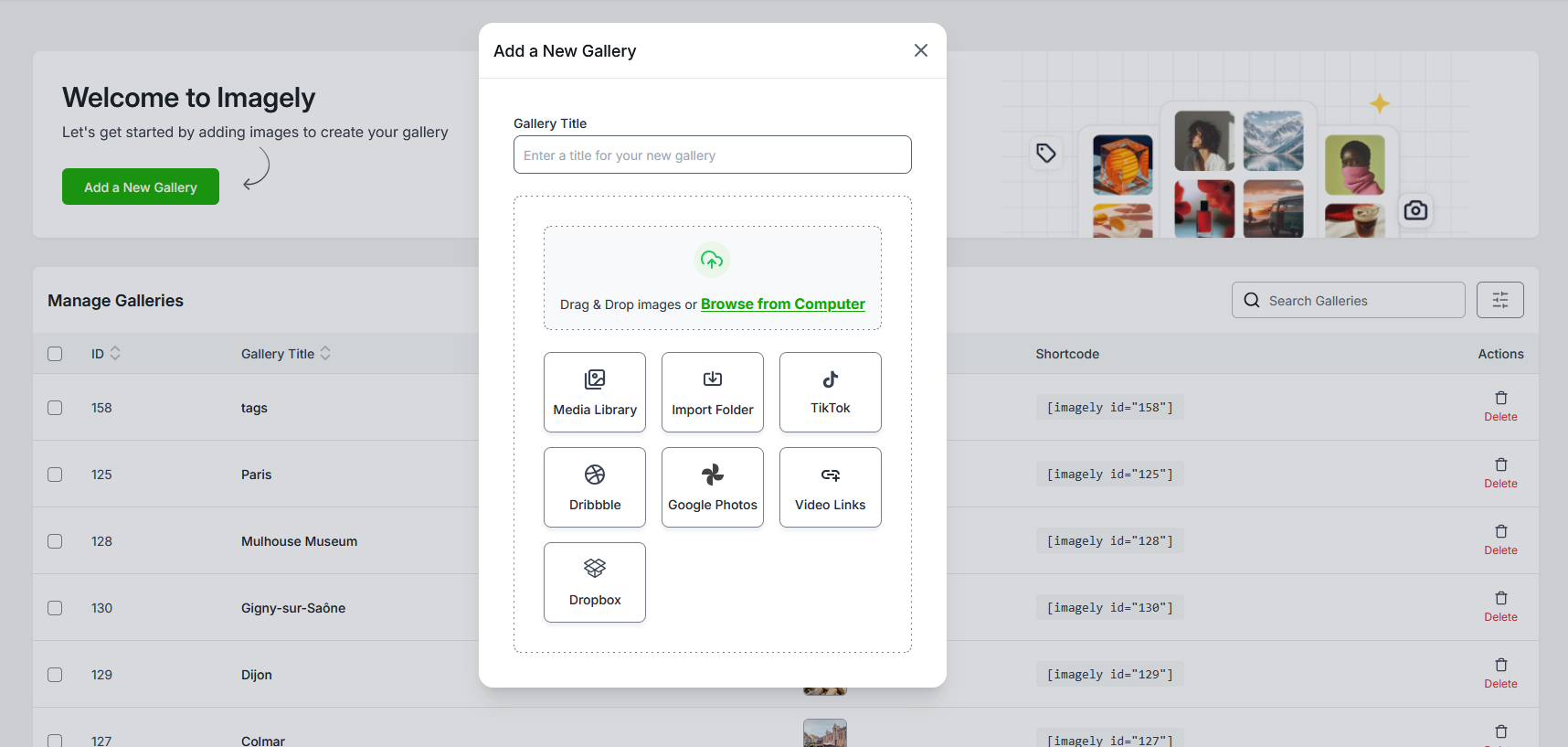
New style, no drop down, search box or other obvious way build a tag based gallery.
Image 1 shows the previous way where it was possible to select tags to populate the gallery. An example here where the gallery is populated by images tagged “France” which then supplies a specified number of random images from all the images tagged France.
https://gallery.heinrich.id.au/places_page/france/random-france
Documentation seems to reference this method. In the new UI, there is no obvious way to do this.
AI said this and I checked each method:
Thanks — I understand you want alternative ways to create a tag-based gallery in the newest NextGEN Gallery where the old “Tags” dropdown is no longer visible. I reviewed Imagely’s documentation (which describes the older Add Gallery window) and it’s outdated, so here are optional approaches you can try with the latest UI. I’ve ordered them from easiest to advanced.

Use the NextGEN block’s search/filters inside the Insert UI >> none found

In the block editor, insert the NextGEN Gallery (Add NextGEN Gallery) block. If the tag dropdown is gone, look for a search box, filter icon, or a field labeled “What would you like to display?” or similar. Type your tag name into that search or filter field — the latest UI often replaces dropdowns with inline search. Select the tag result and set your display type (thumbnail grid, slideshow, etc.), then Insert.

Use the Gallery / Album editor (Dashboard) and create a dynamic gallery >> does not exist

In WordPress admin go to NextGEN Gallery > Galleries (or Manage Galleries). Create a new gallery that is populated by selecting images via tag search (some newer versions let you build a gallery from a tag filter). If that option exists, save the gallery then insert that gallery into your page using the NextGEN block or shortcode.

Build an album that aggregates galleries filtered by tag >> not what I need

If the direct tag option is missing, create galleries that each use the tag you want (or add the tag to images in those galleries). Then create an Album (NextGEN Gallery > Albums) and add those galleries. Insert the Album into your page — it will show images from the selected galleries (less dynamic than a true tag query but works if you control gallery membership).

Use a shortcode with tag parameter (if supported) >> maybe but no

Some NextGEN versions support shortcodes that accept tag arguments. Try building via the Insert UI and inspect the generated shortcode. If you can, modify it to include tag="your-tag" or tags="tag1,tag2". If it renders, paste that shortcode into your page. Note: don’t guess the exact attribute if you can’t find it — test in a draft first.

Use the NextGEN API/Custom shortcode (advanced) not happening

If you’re comfortable with PHP, you can create a custom shortcode that queries NextGEN images by tag (using NextGEN’s PHP functions or WordPress media queries) and outputs your preferred gallery markup or a NextGEN display function. This requires developer access and editing theme/plugin files.

Use the Tag Cloud or Tag Links (UX workaround) does not do what I need

Insert a Tag Cloud (if available) or create links to tag-based archive pages. Clicking a tag can bring users to pages that list images by tag. Then link those pages into your site. This is less direct but works when the Insert UI lacks tag search.

Update or contact support / check plugin settings >> NGG 4.2.4/Pro 4.2.3 the latest

Ensure you’re on the latest NextGEN version and that the Pro displays (if required) are enabled. If UI elements are hidden by other plugins or editor customizations, try disabling conflicting plugins or testing in a default theme. If none of these work, use Imagely support: they must confirm current UI behavior and guide you (I can escalate if you want). Note: I cannot submit support requests for you; if you need account-specific actions (refunds, cancellations, account changes), you must use the Imagely support form.





I have a viable workaround using the lagacy plugin used above so it’s not a priority, but I was hoping I could do this with the new plugin as well.